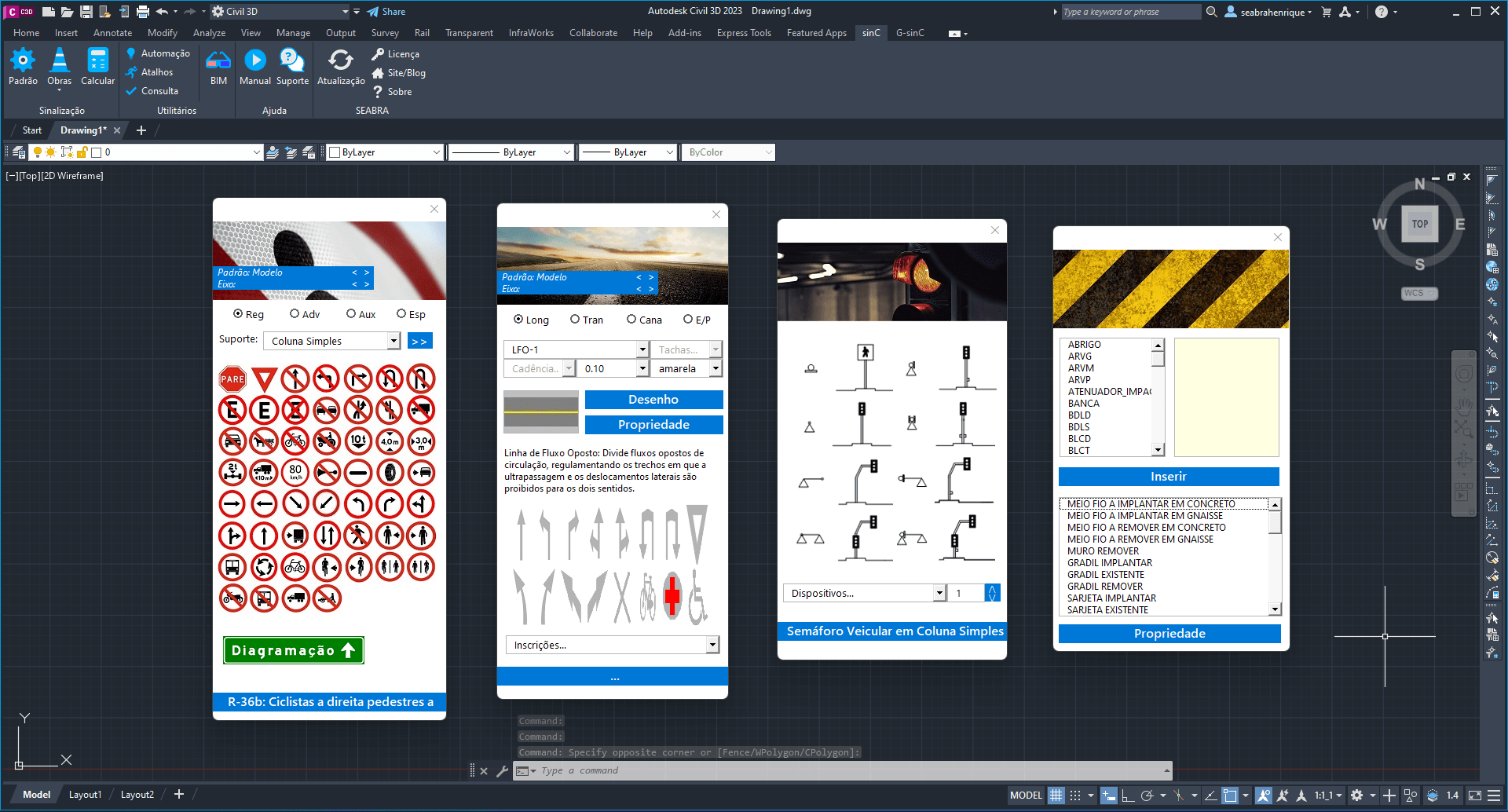
Learn in just a few minutes in this tutorial how to launch signage elements into your project.
Have you installed sinC and don’t know where to start? We’ve got you covered. Launching signaling elements is definitely a great way to start exploring your new plugin.
You can follow the step-by-step text below, or if you are a person who learns better with visual resources, there is a video with the same step-by-step at the end of this content.
Step 1) Find the signaling libraries:
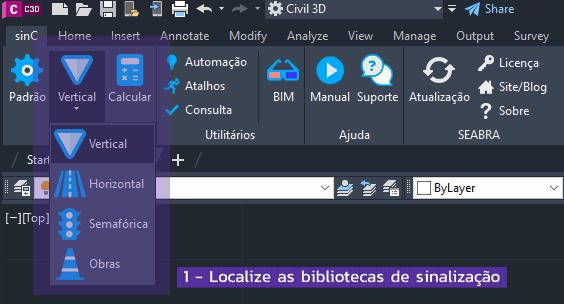
In your sinC tab, libraries are the second button from the left, in the Signaling tab.
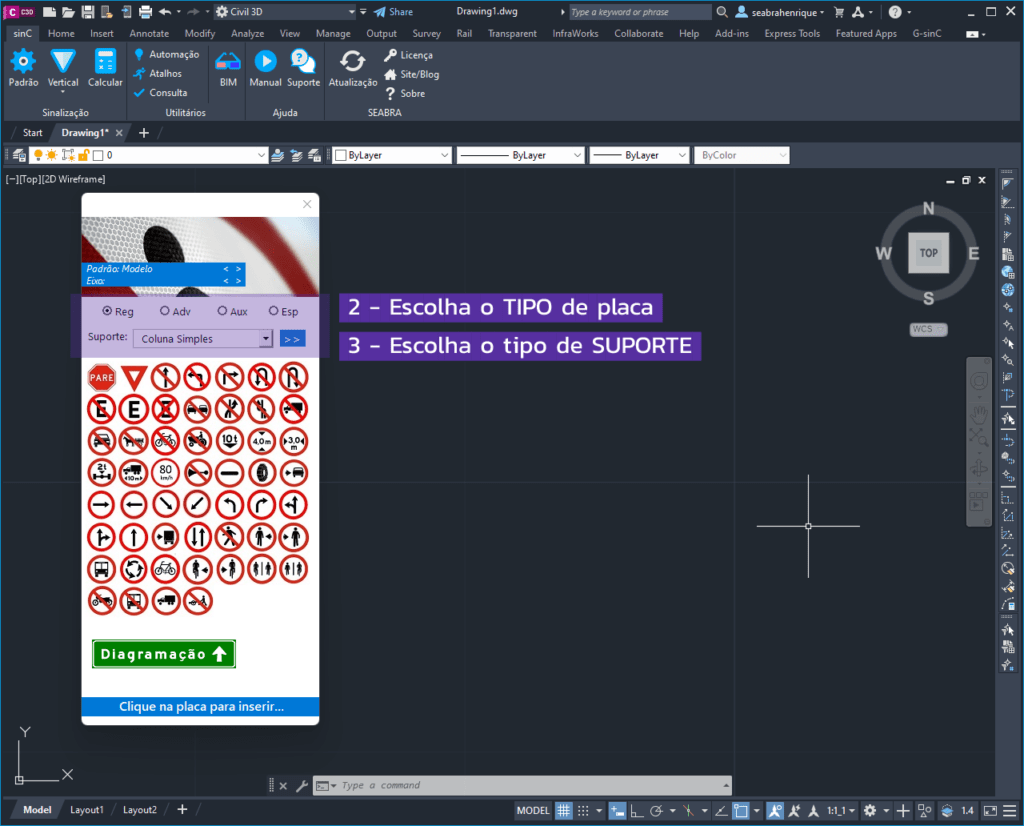
Step 2) Inserting Vertical Signage into the project;
By clicking on the Vertical option located above, you will see the form below, where you can choose the signage group (regulatory, warning, auxiliary or special) that you want to insert in 1 and also the type of support in 2:
Once you have chosen the type of plate and support you want to insert, simply click on the plate and then on a point in your project to define the rotation of your support. This will automatically insert the support, plate and leader line:
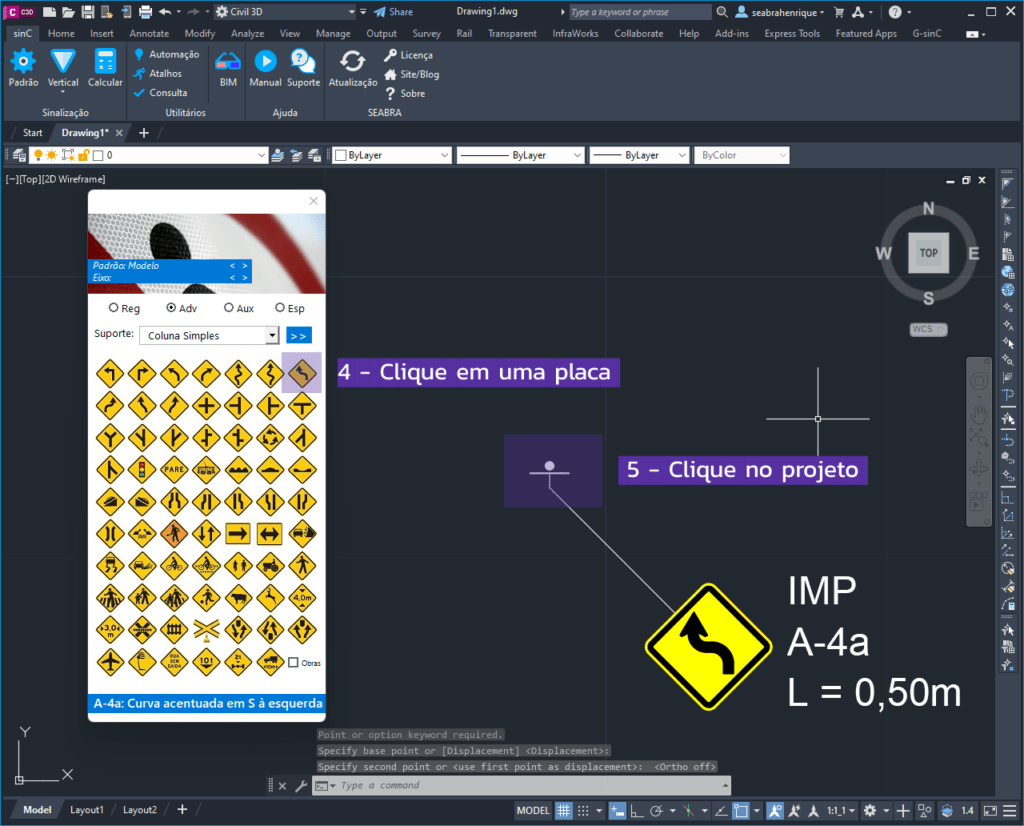
Curious about how the license plate side information was configured? Just click on the Default button, and then Configure display on your sinC.😉
Step 3) Inserting Horizontal Signage into the project;
Now go back to your signage library (in the sinC tab) and click on the Horizontal option, instead of Vertical. You can insert captions and inscriptions with just a few clicks through the bottom of the form:
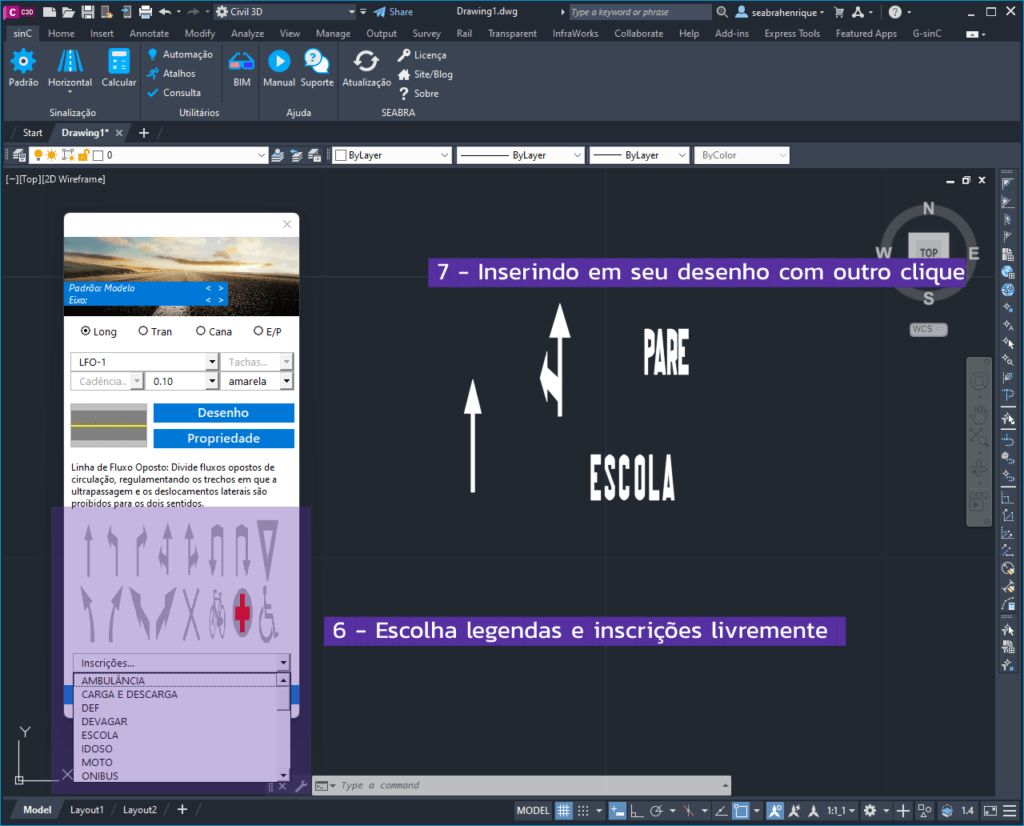
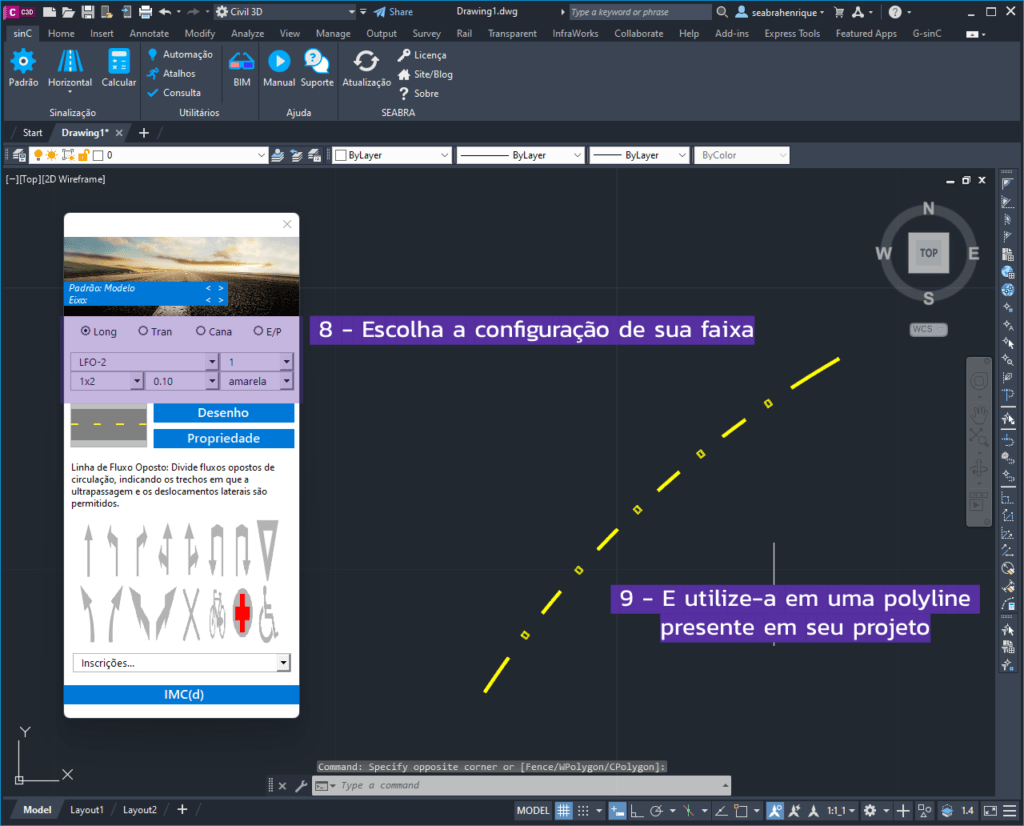
For strips, you can use either drawing mode or property mode. Drawing mode will give you instructions to automate the strip drawing, while property mode works similar to AutoCAD's MA, you know? Try it:
In addition to vertical signage elements, you can also insert traffic light-type signage, safety devices and complementary works.
Bonus: Automatically drawing zebra crossings and pedestrian crossings
Some horizontal signage elements can be particularly complex to design, depending on your project section. Learn right now how to automatically launch the famous zebra crossings and pedestrian crossings:
DOWNLOAD HERE THE TEMPLATE FILE WE ARE USING
Zebras:
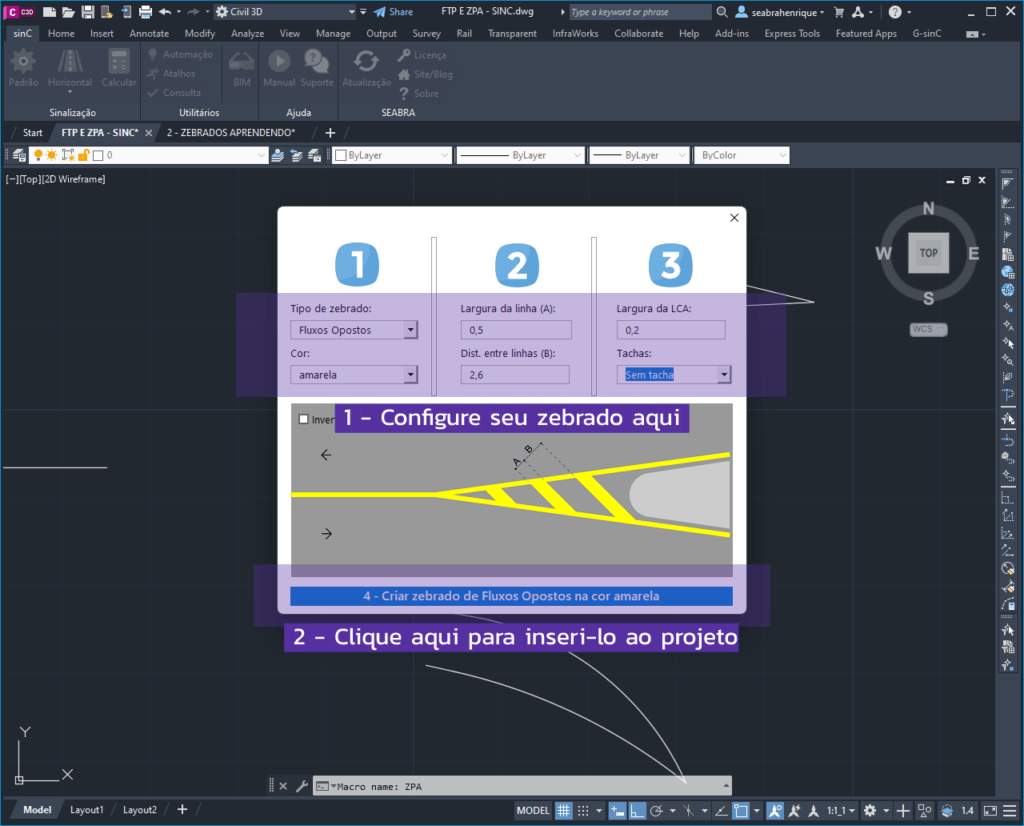
To start, use the ZPA command in your sinC. Configure your zebra pattern in fields 1, 2 and 3, and then click button 4 to launch the zebra pattern in the project:
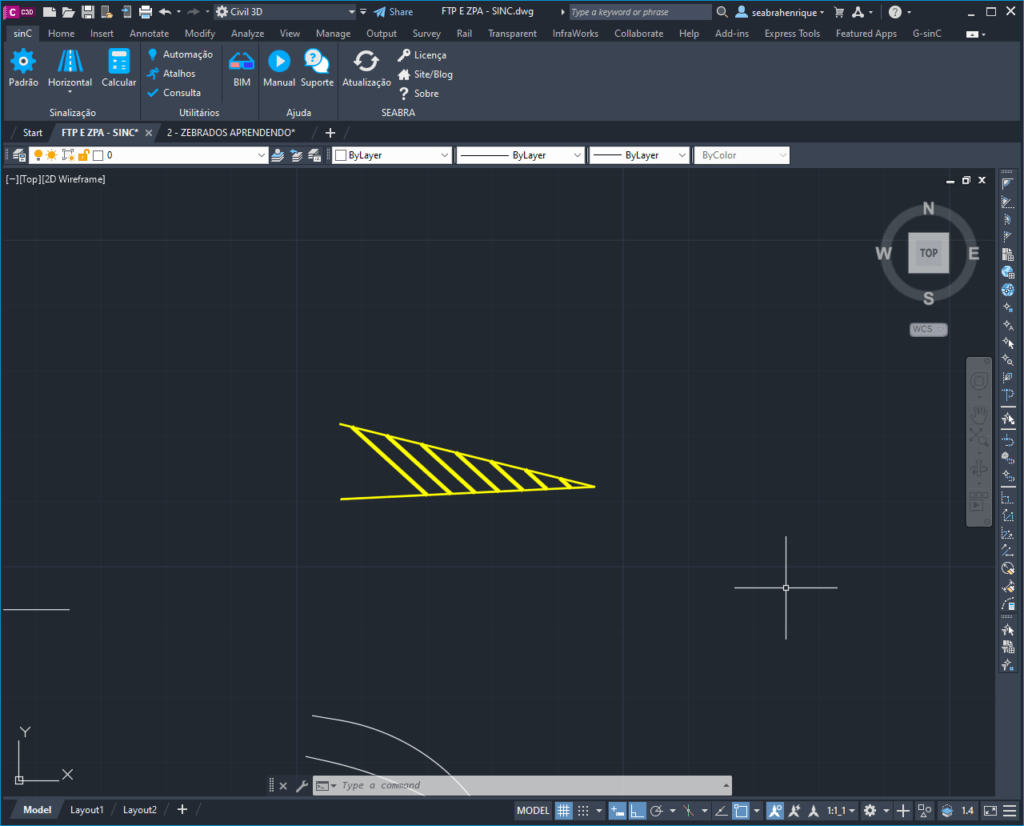
After that, select the two baselines that represent your zebra using one of the example elements from your file, the result should look like this, depending on your chosen settings:
pedestrian crossing
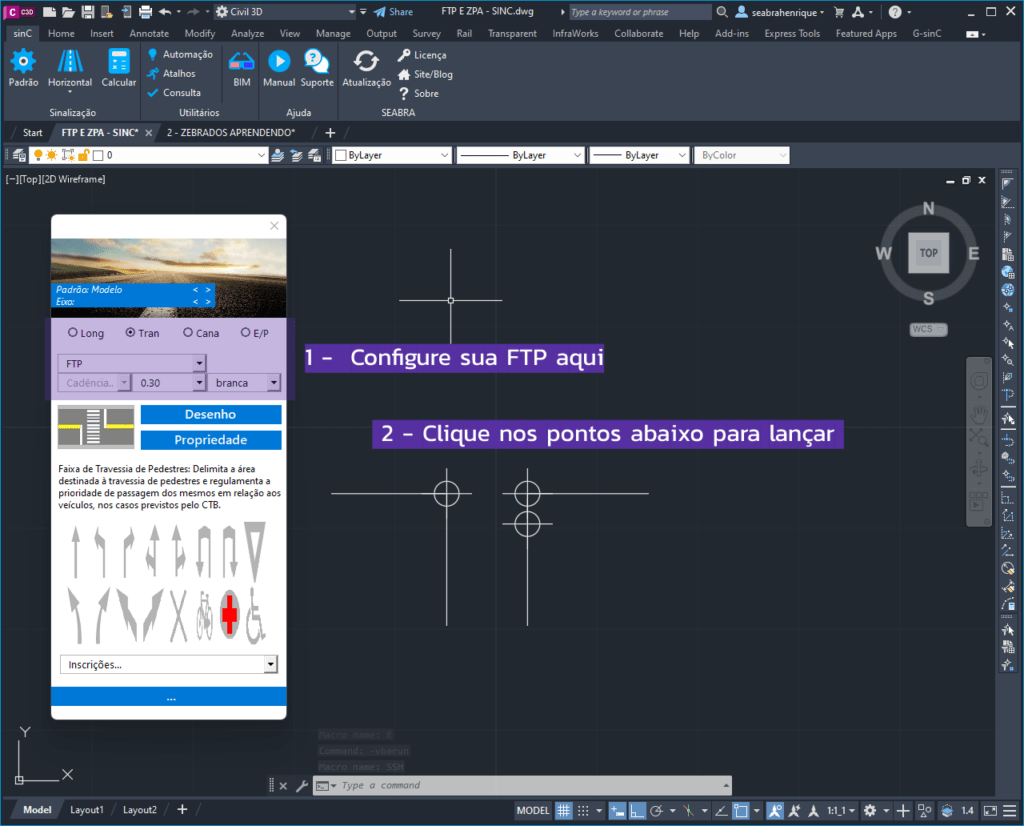
Click on the HORIZONTAL button located on the signage tab of your sinC. Then choose the “Tran” option, which means the “Transversal” group. Configure the pedestrian crossing according to your preference in the menu:
By clicking on the points in question, the result should resemble the model below:
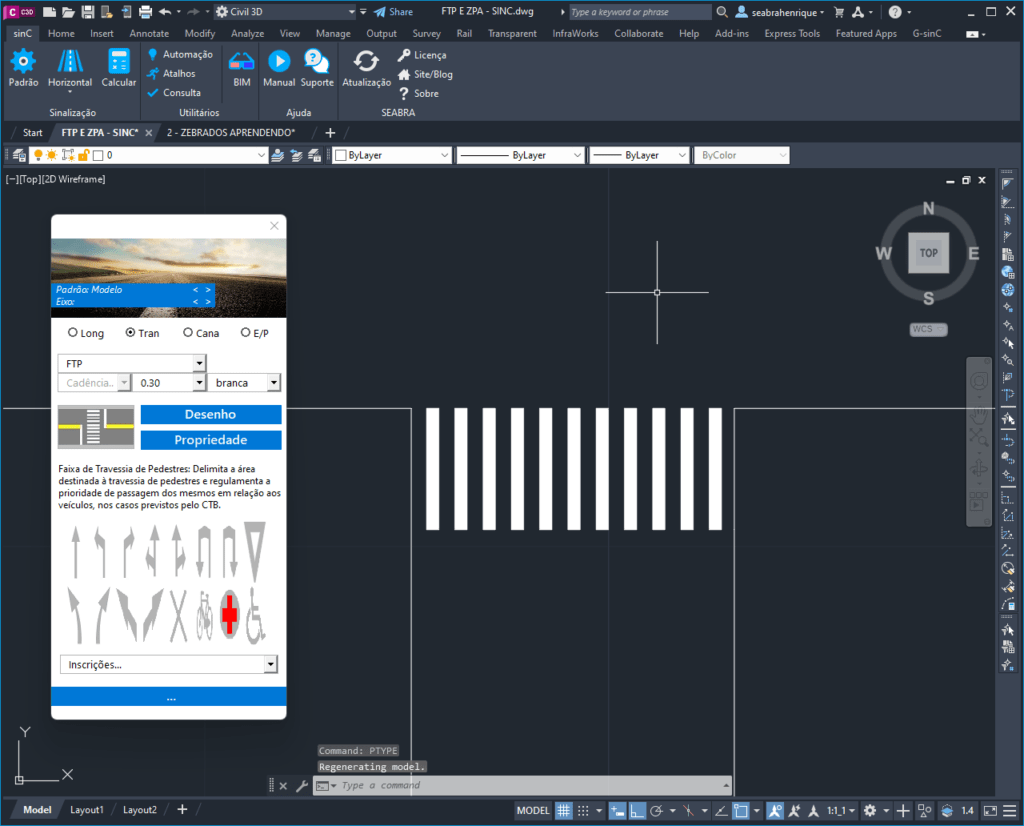
Just think about how much work this would be without your beloved plugin! Fortunately, this will no longer be your reality when you are equipped with the best road safety and signaling tool on the market!
Do you learn better with visual aids? Watch the same instruction for all the content above in video format:
See also Episode 02 – Generating Quantities and the Episode 03 – Your first BIM signage project from our sinC mini-tutorial!
See you later,