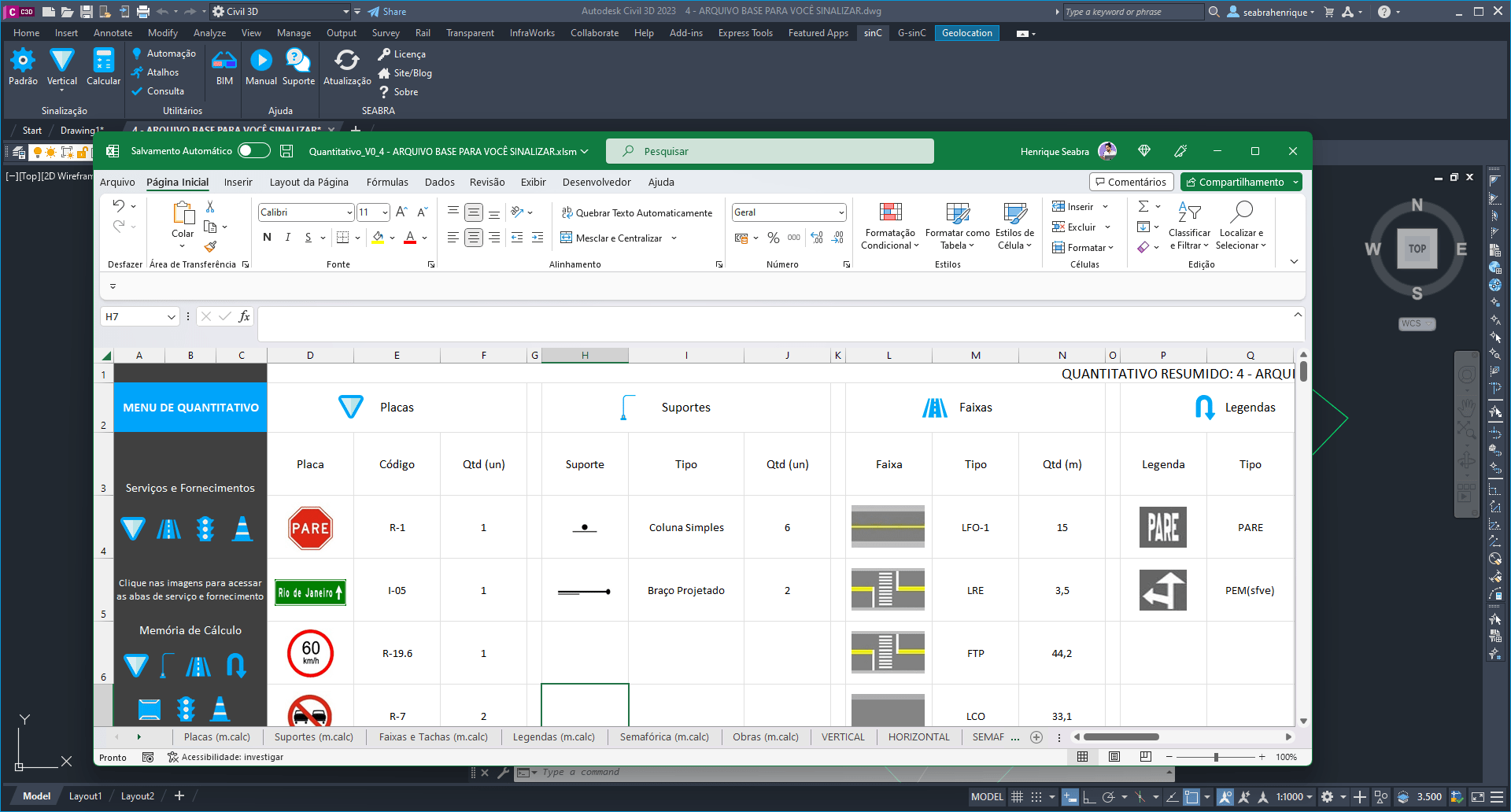
With sinC you can calculate quantities and lists of your signage projects in an automated way, taking just a few minutes.
Now that you have learned How to launch signage elements in your project It's time to calculate your service and supply spreadsheet!
CLICK HERE TO DOWNLOAD THE FILE USED IN THE TUTORIAL
To do this as quickly as possible, you can follow the step-by-step instructions below, or watch the video with the same step-by-step instructions at the end of this content.
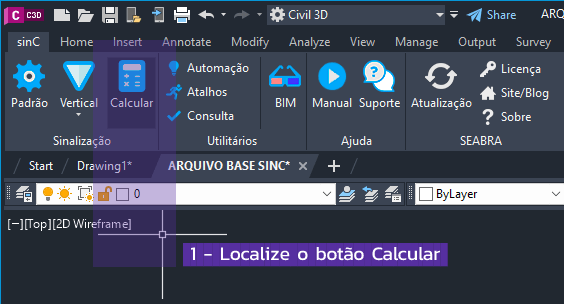
The calculate button is the third from left in the sinC menu:
Step 2) Choosing your quantitative type
You can extract two types of spreadsheets from sinC: The quantitative spreadsheet, which will give you quantities of elements as well as the entire calculation of services and supplies of materials; or you can also generate the Civil List, which will give you a spreadsheet in the service note format:
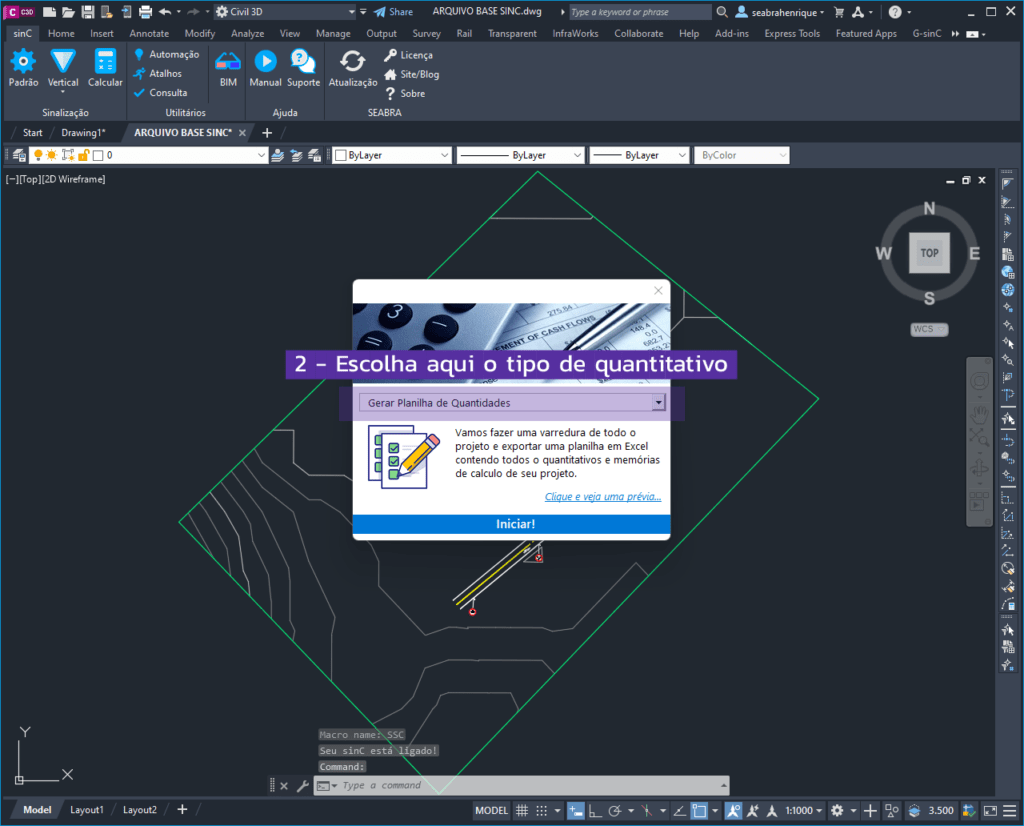
For this example we will choose the “Quantity Spreadsheet” type.
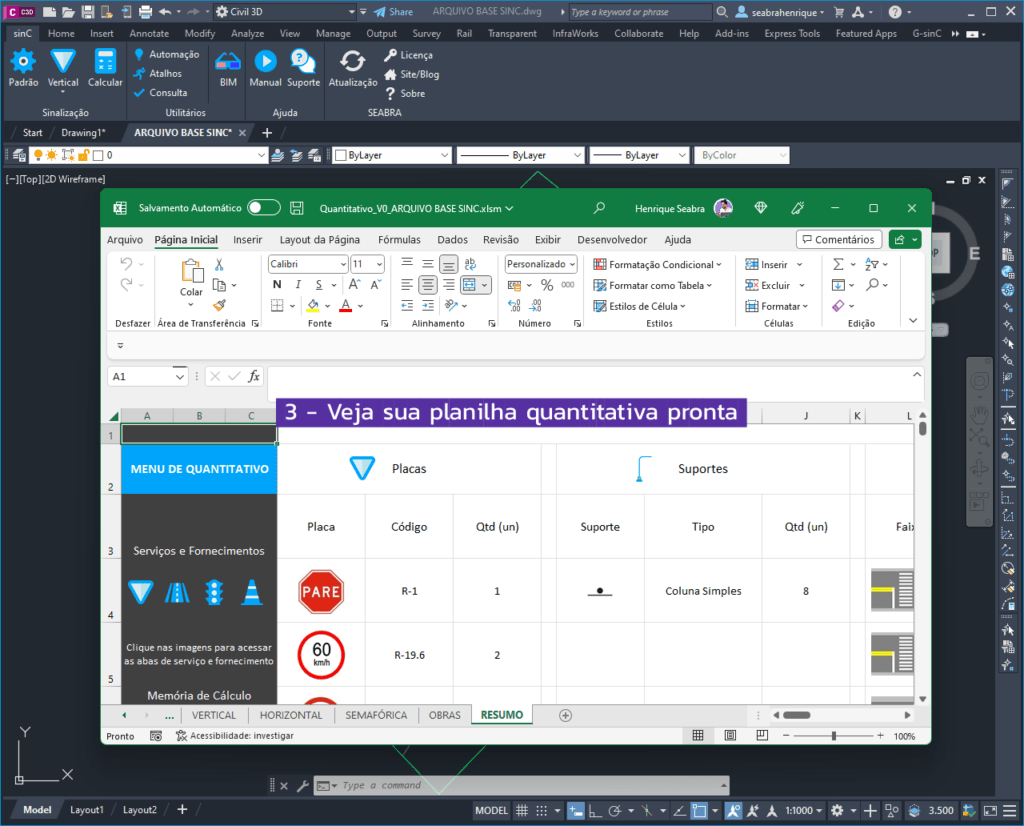
Step 3) Where the magic happens! Generate your spreadsheet in seconds.
Click the start button to generate the quantity for your project. With the generated result open, you can explore the other options on the left side tab of the spreadsheet.
It's crazy to think that with such an option available, there are still people who spend hours (sometimes days and even weeks) manually calculating quantities and service notes for signage and road safety projects, right?! Lol.
Bonus: Want even more immediate results? Check out this “Quick Quantitatives” option with sinC
You know that moment when you simply want to “check” how many and which signage elements are already present in your project? Well then.
With sinC you only need a single click to do this, go back to your Calculate menu and follow the steps below:
Step 1) Choose a signaling category to quantify
This time, do not choose the Generate spreadsheet options, but rather one of the options marked as “Quick Calculation” below:
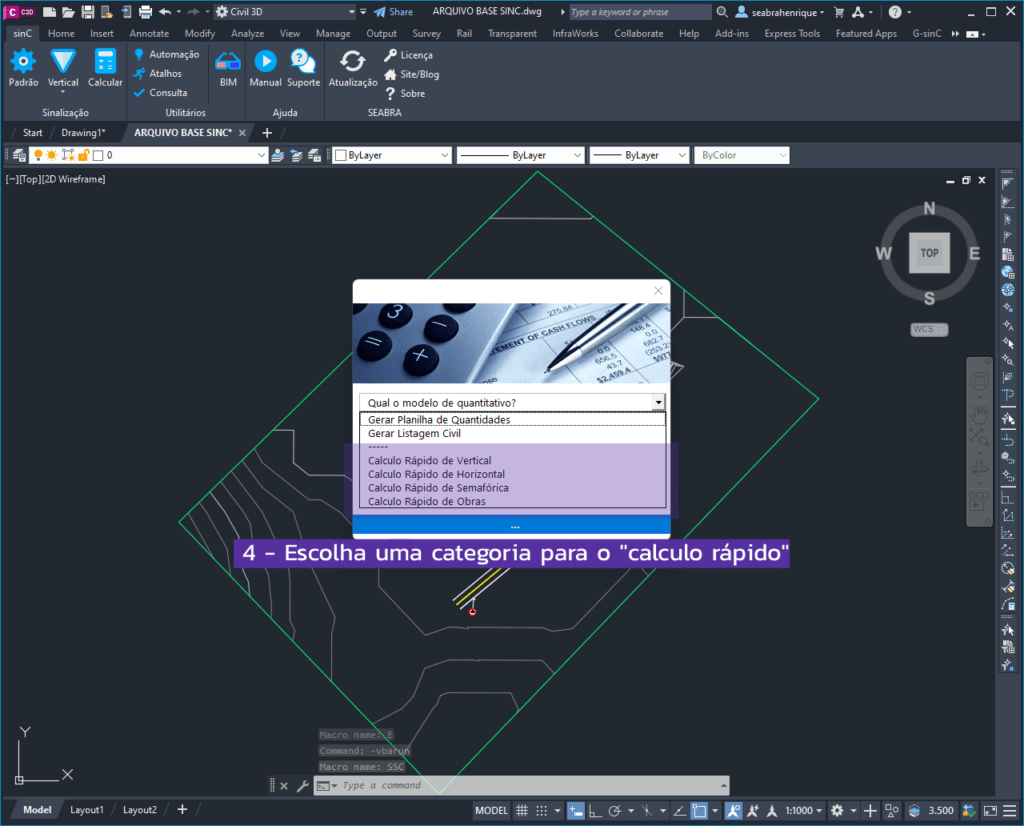
In this example we will choose “Vertical” and click on the blue button to calculate.
Step 2) Click on an item that has been quantified
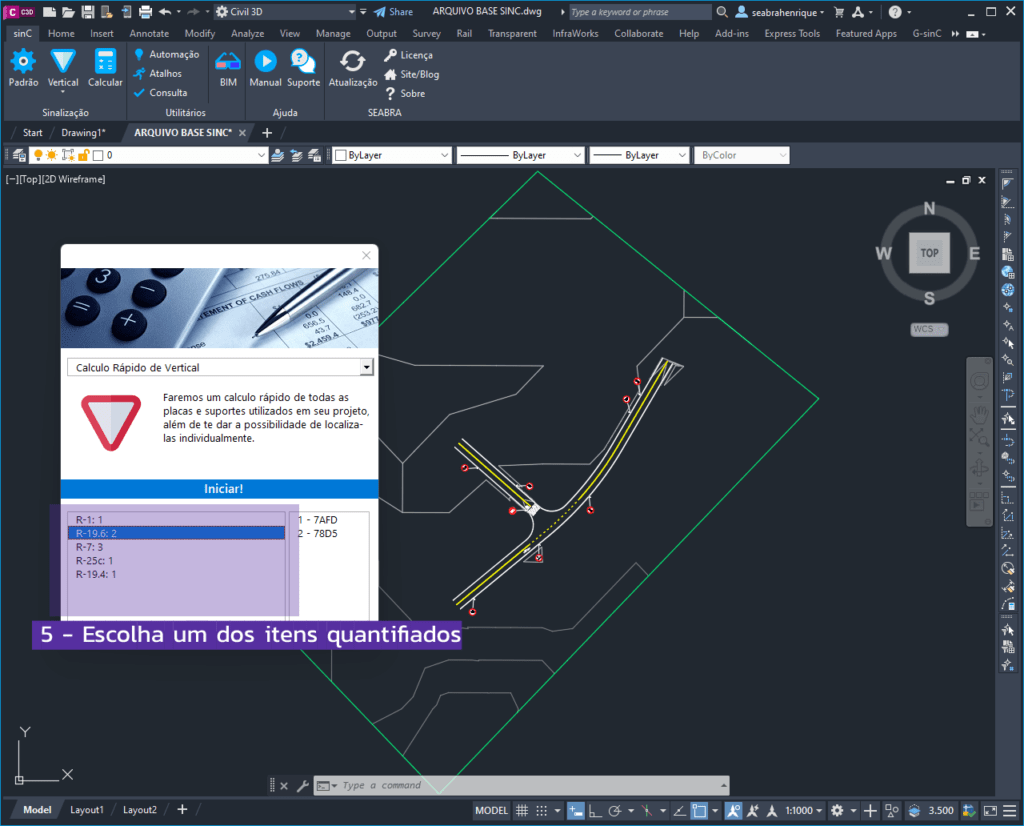
Note that sinC will show the “occurrences” of that type of item next to it.
Step 3) Check and navigate through the items that make up that sum
Now, click on any of the items shown in the right box, and you will be able to check all items of the selected type:
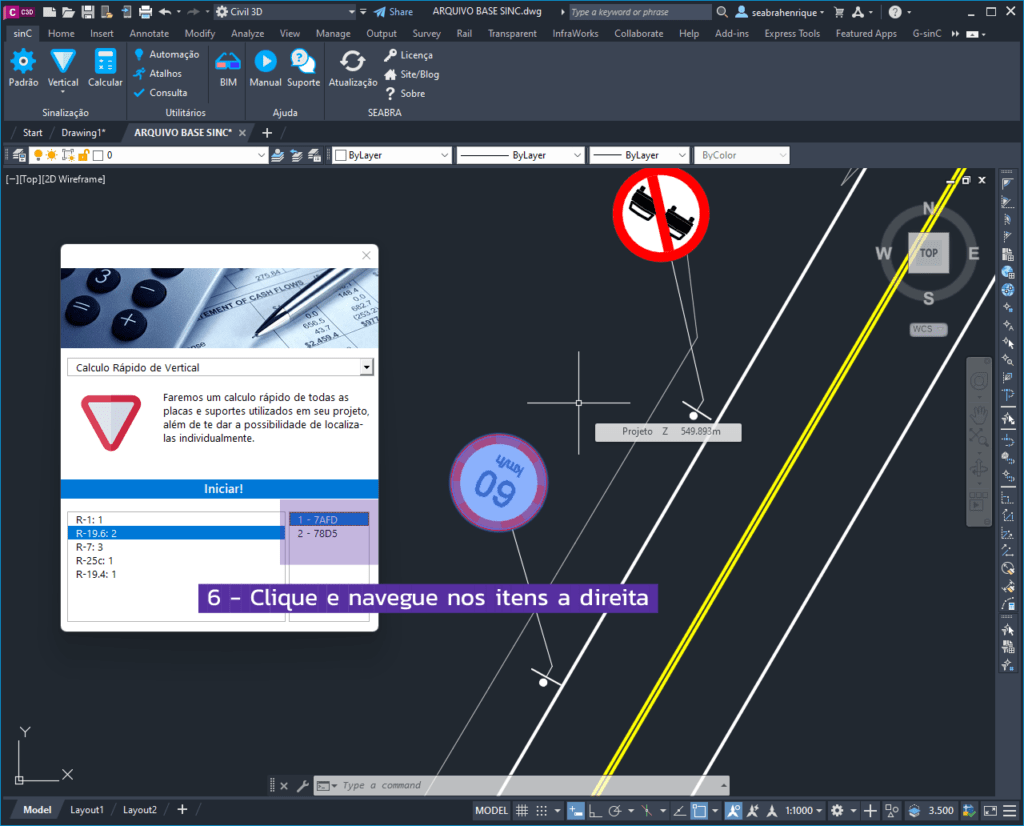
We hope this tip helps take your projects to the next level.
Do you learn better with visual aids? Watch a short video with all the content above:
CLICK HERE TO DOWNLOAD THE FILE USED IN THE TUTORIAL
See also Episode 01 – Inserting signage elements and the Episode 03 – Your first BIM signage project from our sinC mini-tutorial!
See you later,